Wednesday, 5 November 2014

Tamil Font in Skype

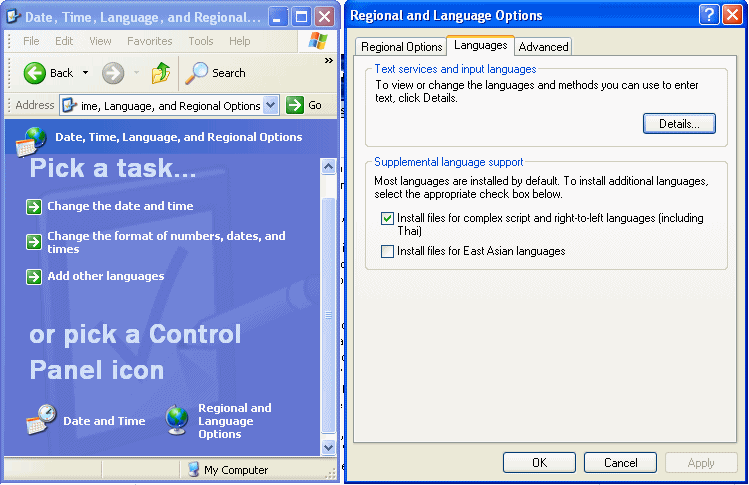
  1. Click on "Start->Control Panel->(Date, Time, Language and Regional Options)->Regional and Language Options"
  2. Click on 'Languages' tab (next to 'Regional Options') at the top
  3. In 'Supplemental language support', see whether "Install files for complex script and right to left languages (including thai)" is kept ticked.
  4. If ticked, leave it as it is. This means your computer is already fully enabled for Unicode. You need not do anything further and skip the steps below.
  5. If not ticked, tick it (but please read the 'Important Note' below before ticking). It will install the required files and ask you to reboot

http://www.azhagi.com/pics/azp-unicode-enable.gif
Tuesday, 15 July 2014

DataSet to JSON, JSON to DataSet , and JSON to DataTable C#

DataSet to JSON
using Newtonsoft.Json;
         //objUserValidation is dataset variable and it contains tables
string jsonValue = JsonConvert.SerializeObject(objUserValidation, Formatting.Indented);


 JSON to DataSet
  using Newtonsoft.Json; 

             System.Data.DataSet ds = new System.Data.DataSet();
                System.Xml.XmlDocument xd = new System.Xml.XmlDocument();

               //jsonValue it contains json value
                 xd = (System.Xml.XmlDocument)JsonConvert.DeserializeXmlNode(jsonValue.ToString(), "jsonValue");

                ds.ReadXml(new System.Xml.XmlNodeReader(xd));


Thursday, 15 May 2014

DataSet to Excel in asp.net sample example.

 public static void Excell(DataSet ds)
        {
            try
            {
                string FileName = "F:\\Testing-"+System.DateTime.Now.Hour.ToString()+"-"+DateTime.Now.Minute.ToString()+".xslx";
                //DataSet ds = new DataSet("myDataset");
                ds.DataSetName = "myDataset";

                Microsoft.Office.Interop.Excel.Application ExcelApp = new Microsoft.Office.Interop.Excel.Application();

                Workbook ExcelWorkBook = null;

                Worksheet ExcelWorkSheet = null;


                ExcelApp.Visible = true;

                ExcelWorkBook = ExcelApp.Workbooks.Add(XlWBATemplate.xlWBATWorksheet);

               
                List<string> SheetNames = new List<string>();
                for (int j = 0; j < ds.Tables.Count; j++)
                {
                    SheetNames.Add(ds.Tables[j].TableName);
                }
               
                for (int i = 1; i < ds.Tables.Count; i++)
                    ExcelWorkBook.Worksheets.Add(); //Adding New sheet in Excel Workbook


                for (int i = 0; i < ds.Tables.Count; i++)
                {
                    int r = 1; // Initialize Excel Row Start Position  = 1
                    ExcelWorkSheet = ExcelWorkBook.Worksheets[i + 1];
                    //Writing Columns Name in Excel Sheet
                    for (int col = 1; col < ds.Tables[i].Columns.Count; col++)
                        ExcelWorkSheet.Cells[r, col] = ds.Tables[i].Columns[col - 1].ColumnName;
                    r++;

                    //Writing Rows into Excel Sheet

                    for (int row = 0; row < ds.Tables[i].Rows.Count; row++) //r stands for ExcelRow and col for ExcelColumn
                    {
                        // Excel row and column start positions for writing Row=1 and Col=1
                        for (int col = 1; col < ds.Tables[i].Columns.Count; col++)

                            ExcelWorkSheet.Cells[r, col] = ds.Tables[i].Rows[row][col - 1].ToString();

                        r++;

                    }

                    ExcelWorkSheet.Name = SheetNames[i];//Renaming the ExcelSheets
                }

                ExcelWorkBook.SaveAs(FileName);
                ExcelWorkBook.Close();
                ExcelApp.Quit();
                Marshal.ReleaseComObject(ExcelWorkSheet);
                Marshal.ReleaseComObject(ExcelWorkBook);
                Marshal.ReleaseComObject(ExcelApp);
            }
            catch (Exception ex)
            {

            }
        }
using Microsoft.Office.Interop;
using Microsoft.Office.Interop.Excel;

Monday, 12 May 2014

Find Last Date Time Updated for Any Table

SQL SERVER – Find Last Date Time Updated for Any Table

I just received an email from one of my regular readers who is curious to know if there is any way to find out when a table is recently updated. I was ready with my answer! I promptly suggested him that if a table contains UpdatedDate or ModifiedDate date column with default together with value GETDATE(), he should make use of it. On close observation the table is not required to keep history when any row is inserted. However, the sole prerequisite is to be aware of when any table has been updated. That’s it!
If a user wants to finds out when was the last table updated he can query dynamic management view (dmv) – sys.dm_db_index_usage_stats and easily figure out when was the table updated last. Let us comprehend this example by creating a table and updating it. We can use dmv to determine when it was updated last.
USE AdventureWorks
GO
CREATE TABLE Test
(ID INT,
COL VARCHAR(100))
GO
INSERT INTO Test
SELECT 1,'First'
UNION ALL
SELECT 2,'Second'
GO

Now we have created a table and populated it with data. Next, we will run the following query to find out when it was last updated.
SELECT OBJECT_NAME(OBJECT_ID) AS DatabaseName, last_user_update,*
FROM sys.dm_db_index_usage_stats
WHERE database_id = DB_ID( 'AdventureWorks')
AND
OBJECT_ID=OBJECT_ID('test')

Running query provides accurate details of when was  the table last updated. If WHERE condition is entirely removed it will provide details of the entire database.


Thursday, 17 April 2014

Date Comparison in C# with millisecond

            DateTime dt1 = Convert.ToDateTime("04/17/2014 04:05:25.8652258 AM");
            DateTime dt2 = Convert.ToDateTime("04/17/2014 04:05:25.8652258 PM");
            int Res = DateTime.Compare(dt1, dt2);//args[0] is latest time, args[1] is old time
            

If Res returns 0(zero) then both values are equal.
If Res returns -1 then dt2 is the latest time
If Res returns 1 then the condition is true. dt1 is latest. 

Monday, 7 April 2014

SQL Result as vertical

create table test (CustomerID int,CustomerName varchar(50),Location varchar(50))
Insert into test values (101,'IBM','NY'),(102,'MSFT','WA')
select * from test
--Method-1
Select Col,Val from test
cross apply (values('customerID',Cast(customerID as varchar(50))),('CustomerName',CustomerName),('Location',Location) ) d(Col,Val)


--Method-2
Select Col,Val from (select Cast(customerID as varchar(50)) as customerID,CustomerName,Location from test) src
unpivot (val For col in ([customerID],[CustomerName],[Location])) unpvt

drop table test